
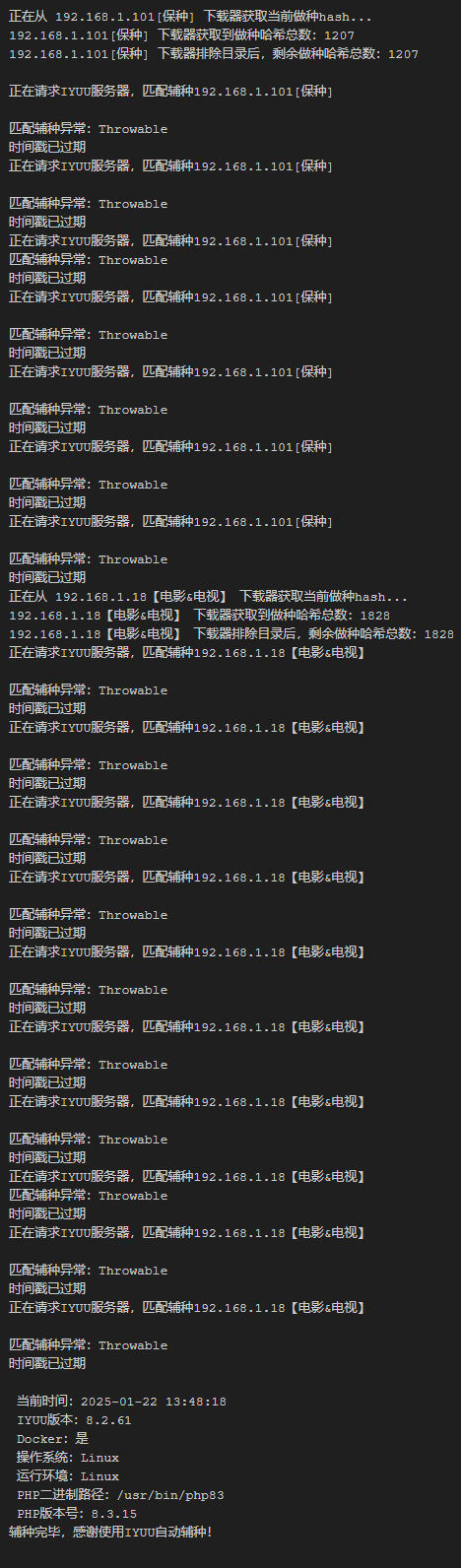
IYUU 辅种时报错:时间戳已过期
解决办法:
IYUUPlus所在主机的时间不正常(如果是Docker容器安装的,则为Docker的宿主机的时间不正常),请调整时间,建议设置NTP自动更新时间。
https://doc.iyuu.cn/guide/qa-reseed
在宿主机中(Debian),你可以通过配置NTP(Network Time Protocol)来自动更新时间。以下是设置NTP自动更新时间的步骤:
1. 安装NTP服务
首先,确保你的系统已经安装了NTP服务。如果没有安装,可以使用以下命令进行安装:
sudo apt-get update
sudo apt-get install ntp
2. 配置NTP服务器
安装完成后,NTP服务会自动启动,并且会使用默认的NTP服务器进行时间同步。你可以编辑NTP配置文件来指定你喜欢的NTP服务器。
打开NTP配置文件:
sudo nano /etc/ntp.conf
在文件中,你可以看到类似以下的配置:
# Use servers from the NTP Pool Project. Approved by Ubuntu Technical Board
# on 2011-02-08 (LP: #104525). See http://www.pool.ntp.org/join.html for
# more information.
pool 0.debian.pool.ntp.org iburst
pool 1.debian.pool.ntp.org iburst
pool 2.debian.pool.ntp.org iburst
pool 3.debian.pool.ntp.org iburst
你可以保留这些默认的NTP服务器,或者根据需要添加其他NTP服务器。例如:
server ntp1.example.com
server ntp2.example.com
3. 重启NTP服务
编辑完配置文件后,保存并退出编辑器。然后重启NTP服务以应用更改:
sudo systemctl restart ntp
4. 检查NTP服务状态
你可以使用以下命令来检查NTP服务的状态,确保它正在运行:
sudo systemctl status ntp
如果一切正常,你应该会看到类似以下的输出:
● ntp.service - Network Time Service
   Loaded: loaded (/lib/systemd/system/ntp.service; enabled; vendor preset: enabled)
   Active: active (running) since ...
5. 验证时间同步
你可以使用以下命令来验证系统时间是否已经与NTP服务器同步:
ntpq -p
这将显示NTP服务器的状态和同步情况。
6. 设置NTP服务开机自启动(可选)
为了确保NTP服务在系统启动时自动启动,你可以使用以下命令:
sudo systemctl enable ntp
7. 使用timedatectl命令(可选)
你也可以使用timedatectl命令来查看和配置系统时间和时区:
timedatectl
如果需要手动同步时间,可以使用:
sudo timedatectl set-ntp true
总结
通过以上步骤,你已经成功在Debian系统上配置了NTP服务来自动更新时间。这样可以确保系统时间的准确性,特别是在需要时间同步的应用场景中。
本文是原创文章,采用 CC BY-NC-ND 4.0 协议,完整转载请注明来自 www.easonbobs.top
评论
匿名评论
隐私政策
你无需删除空行,直接评论以获取最佳展示效果